
You’re about to flip the switch on Microsoft 365 Copilot. Licensing sorted, pilot group selected, and someone in leadership is excited about “productivity gains.” But here’s what nobody in the sales pitch told you: Copilot respects existing permissions exactly. Every file a user can read, Copilot can surface. That HR salary spreadsheet someone shared org-wide during a headcount review three years ago? Copilot will happily answer “what does my colleague earn?” for anyone who asks.
This isn’t a bug. It’s a feature meeting years of permission neglect. Deploy Copilot without addressing it, and you’re going to have a very uncomfortable conversation with your CISO.
In this post
- 1️⃣ Why Copilot makes oversharing dangerous
- 2️⃣ What Purview DSPM actually does
- 3️⃣ Run your first data risk assessment
- 4️⃣ Read the results and find the fires
- 5️⃣ Emergency containment with Restricted Content Discovery
- 6️⃣ Label-based Copilot protection
- 7️⃣ Fix “Anyone with the link” at scale
- 8️⃣ Ongoing governance: don’t set and forget
1️⃣ Why Copilot makes oversharing dangerous
Something that’s very normal, for a lot of companies, is a messy sharepoint. This is the result of a lift and shift migration from old school file server, to sharepoint, with no clean up. And now people are just sharing how they want to. This didn’t use to be too big of a problem, because to find something you needed to know where to look. This is no longer the case with copilot.
- Board strategy documents shared via forgotten “Anyone with the link” URLs — Copilot can summarise them for any licensed user
- Employee salary data on HR sites with org-wide sharing — Copilot answers compensation questions on demand
- M&A target lists on finance sites with broken permission inheritance — surfaced in response to general business queries
- Legal due diligence files on sites set to “Public” privacy — referenced by Copilot when answering anything tangentially related
Microsoft’s own research puts 40% of data security incidents inside AI applications. Sit with that number for a moment.
📖 Microsoft’s official Copilot oversharing blueprint
2️⃣ What Purview DSPM actually does
Microsoft Purview Data Security Posture Management (DSPM) is the tool Microsoft built specifically for this problem. It scans your SharePoint environment, identifies overshared content, and gives you guided remediation workflows — all from a single portal.
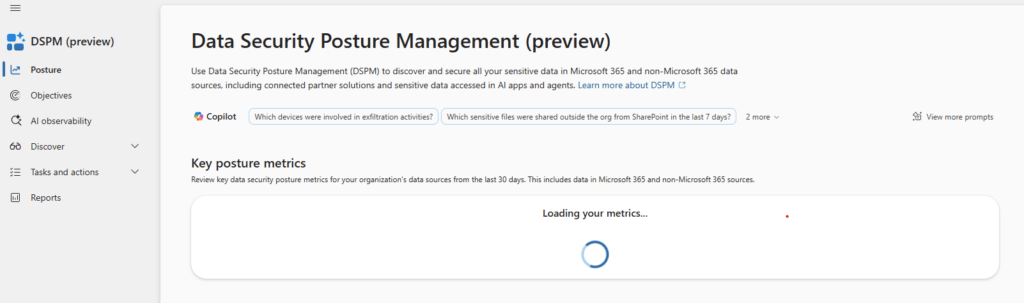
Fair warning: there are currently two versions in the portal. The new unified DSPM (preview) is what you want — it combines the older “DSPM for AI” experience with classic DSPM into a single outcome-driven interface. If you see both options, pick the preview.
What DSPM gives you per SharePoint site:
- Total items scanned vs. not yet scanned
- Sensitivity label coverage — how many files are labeled, how many have sensitive information types (SITs) detected but no label, and how many are completely dark
- Sharing link breakdown — items shared with “anyone,” org-wide, specific people, or external users
- Item-level detail (as of March 2026) — drill into individual files, see their sharing link types, and take direct action
Prerequisites before you start:
- You need Entra Compliance Administrator or Purview Compliance Administrator role
- M365 Copilot subscription (which now includes SharePoint Advanced Management at no extra cost) or Microsoft Purview E3/E5 licensing
- For item-level scanning: an Entra application (service principal) configured by your Entra admin
3️⃣ Run your first data risk assessment
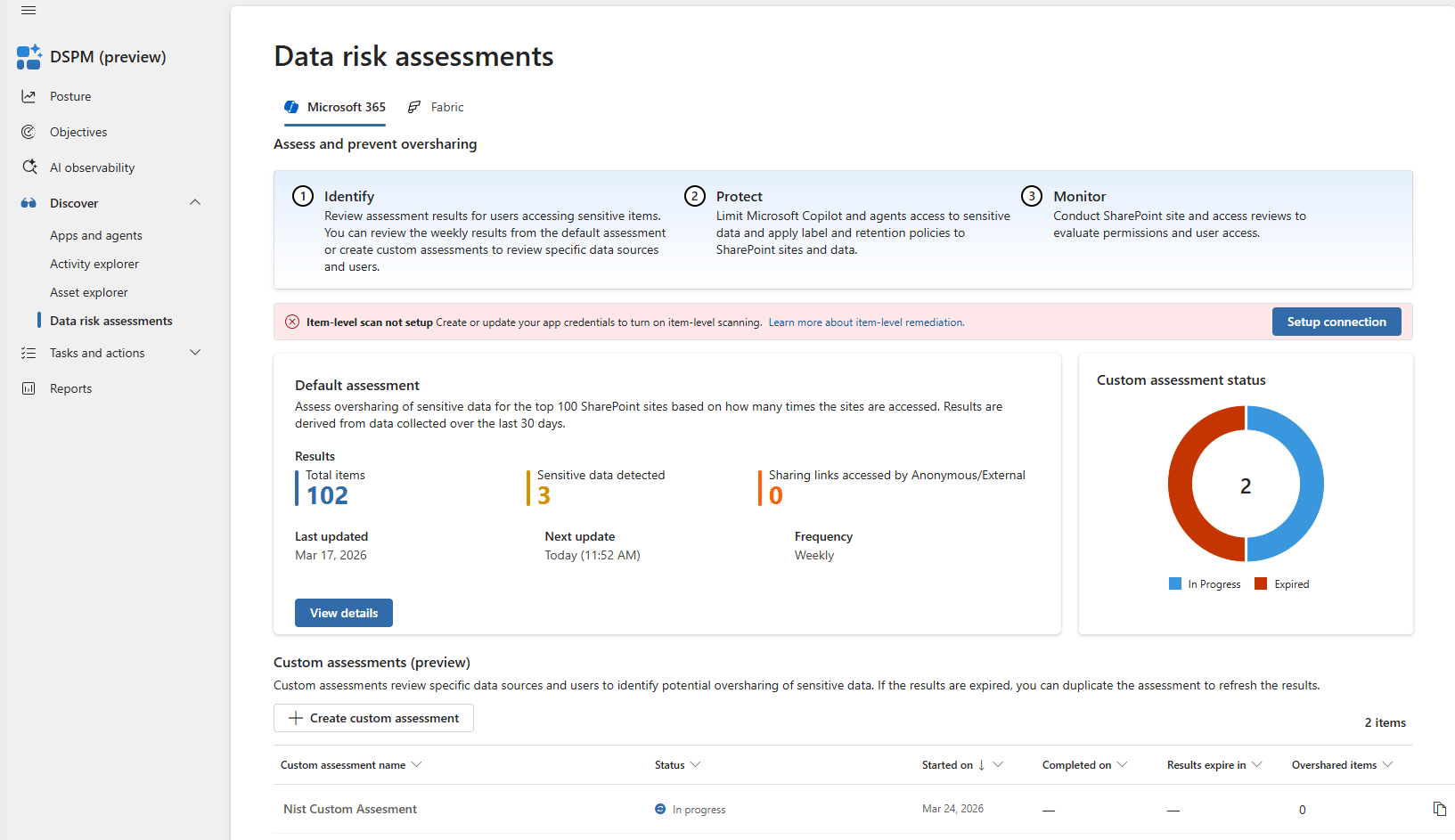
DSPM’s core feature for oversharing is Data Risk Assessments. A default assessment runs automatically every week on your top 100 SharePoint sites by usage. You don’t have to configure anything — it’s already running.
Step 1: Navigate to the assessment
- Go to purview.microsoft.com
- In the left nav, click DSPM (preview)
- Click Discover → Data risk assessments
- Select the Microsoft 365 tab
Step 2: Review the default assessment
- Click View details on the default assessment
- Check the summary cards: total items scanned, sensitive items detected, and — this is the number that matters — links sharing data with anyone
- If the assessment hasn’t completed yet (first run takes ~4 days), come back later. Don’t panic.
Step 3: Create a custom assessment (optional but recommended)
The default assessment covers your top 100 sites. If you know specific high-risk sites — HR, Finance, Legal, Executive — create a custom assessment targeting those explicitly. Custom assessments give you 30 days of stable results before they expire; just duplicate to re-run.
4️⃣ Read the results and find the fires
Once your assessment completes, you’ll see a site-by-site breakdown. Here’s what to look for, in priority order:
Red flag #1: Items shared with “anyone”
Anonymous sharing links. No authentication required — just the URL. If Copilot can see these files (and it can, through the user’s permissions), this is your highest blast radius. Sort the site list by this column first.
Red flag #2: Sensitive items with no labels
DSPM detected sensitive information types (social security numbers, credit card numbers, financial data) but the files have no sensitivity label. Your DLP policies can’t protect them. Copilot has no guardrails on them. They’re invisible to your existing protection stack.
Red flag #3: Sites set to Public privacy
Click into each high-risk site’s flyout panel and check its privacy setting. A SharePoint site set to “Public” means every authenticated user in your organisation can access it. Combined with Copilot, that’s organisation-wide exposure.
Red flag #4: Large unscanned item counts
If a site shows thousands of unscanned items, you’re flying blind. Go to the Identify tab and trigger an on-demand classification scan. Budget 24–48 hours for results.
5️⃣ Emergency containment with Restricted Content Discovery
Before your Copilot pilot goes live, this is where I’d start — and it takes about five minutes per site.
Restricted Content Discovery (RCD) blocks Copilot from indexing and processing an entire SharePoint site. Users can still access the site normally — their permissions don’t change. But Copilot can’t see it, can’t reference it, can’t surface its content in answers. It’s an emergency brake.
When to use it: On your most sensitive sites (HR, Legal, Finance, M&A, Executive) while you do the longer work of fixing labels and permissions. Don’t wait for perfect — contain first, remediate later.
How to enable RCD from DSPM:
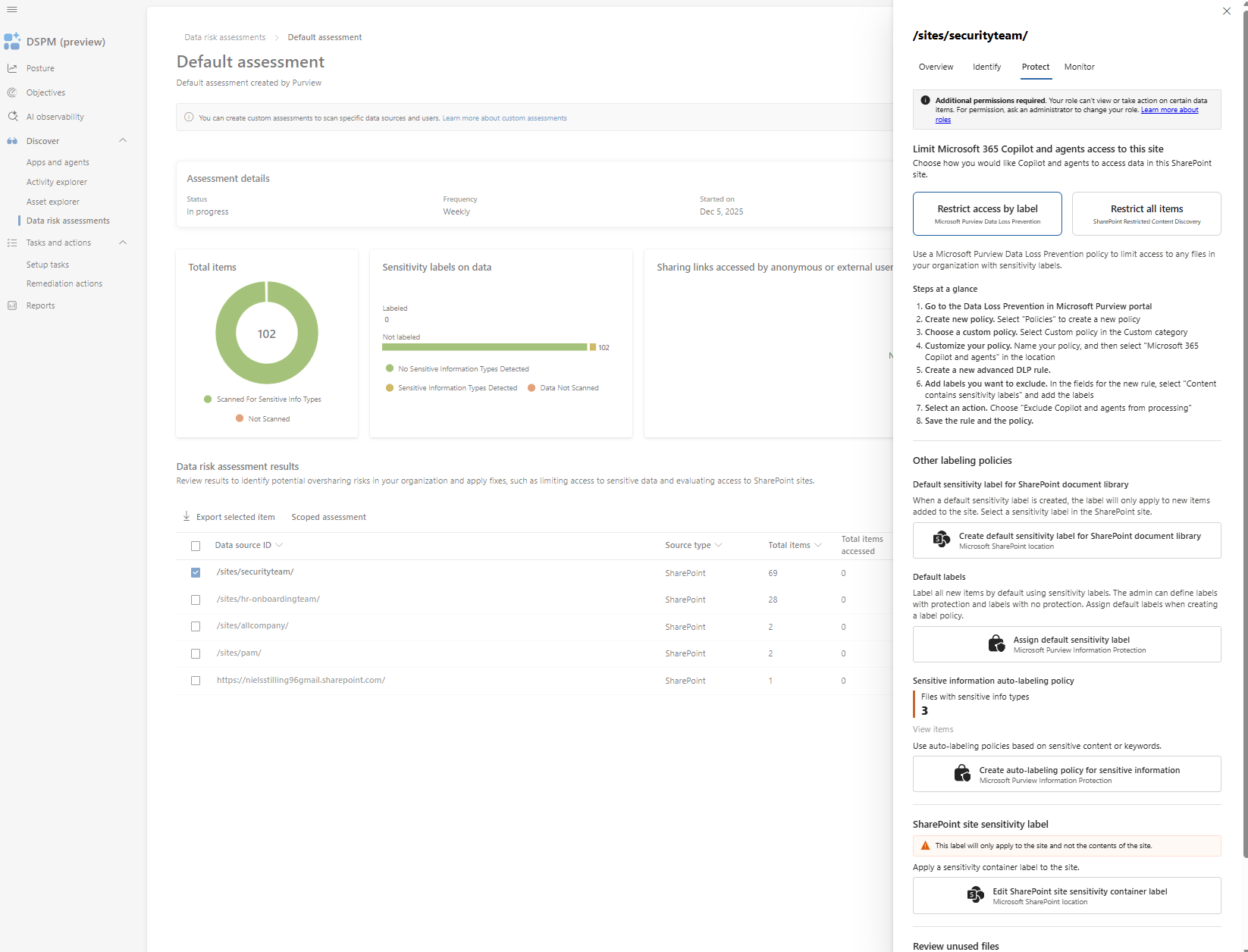
- In the assessment results, click the high-risk site
- Go to the Protect tab
- Click Restrict all items
- Confirm — this enables RCD via SharePoint Advanced Management
You can also enable RCD directly in the SharePoint admin center. The DSPM route is just faster when you’re already triaging.
My recommendation: Identify your top 10 most sensitive sites and enable RCD on all of them before your Copilot pilot begins. It buys you time without disrupting users.
6️⃣ Label-based Copilot protection
Practical example: any file labeled “Highly Confidential” gets blocked from Copilot across your entire tenant. Users can still open and edit those files — Copilot just can’t summarise, reference, or surface them.
The catch: This only works on labeled files. If sensitive content has no label, this protection doesn’t apply. That’s why the labeling gap from your DSPM assessment matters so much.
Step 1: Fix unlabeled sensitive content with auto-labeling
- In DSPM, go to the Protect tab for a site with unlabeled sensitive items
- Click Create auto-labeling policy
- Select the sensitivity label to apply (e.g., “Confidential”) and the SITs to match (e.g., CPR numbers, credit card numbers)
- Deploy and wait — auto-labeling policies can take days to weeks on large document libraries. Start early.
Alternative Step 1: Fix unlabeled sensitive content with Default sensitivity label
- In DSPM, go to the Protect tab for a site with unlabeled sensitive items
- Click Create default sensitivity label for sharepoint document libary
- Select the sensitivity label to apply (e.g., “Confidential”) and the SITs to match (e.g., CPR numbers, credit card numbers)
- Deploy and wait — auto-labeling policies can take days to weeks on large document libraries. Start early.
It should be noted, that i recommend using RCD, as talked about in the previous step instead of Default sensitivity label for sharepoint site. We will discuss an “overall” default sensitivity label, in another blog post.
Step 2: Create a DLP policy to block Copilot by label
- In DSPM, click Protect → Restrict access by label
- Select the sensitivity label(s) to restrict (e.g., “Highly Confidential”)
- This creates a DLP policy that prevents Copilot and agents from processing files with those labels across all SharePoint locations
In my experience, the right approach is both: RCD on your highest-risk sites for immediate containment, label-based protection for a more surgical long-term posture. They’re not competing strategies — they’re layers.
7️⃣ Fix “Anyone with the link” at scale
“Anyone with the link” sharing is your #1 oversharing vector. Anonymous links — no sign-in required, no audit trail, often created years ago by someone who’s since left the organisation. Broadest possible blast radius.
Item-level remediation (March 2026+):
- Run a Custom Assessment in DSPM targeting your high-risk sites
- Once complete, navigate to the Potentially overshared items tab
- Filter by sharing type = “Anyone”
- Select items in bulk → click Remove sharing link
- Or select items → Notify owner to push remediation to content owners
Site-level cleanup via SAM:
For broader cleanup, use SharePoint Advanced Management’s Permission State Reports. These show you the real picture — deduplicated user counts, broken permission inheritance, public links, excessive group access — across your entire tenant.
Then trigger Site Access Reviews from SAM: this emails site owners with a review task to audit their site’s permissions and remove unnecessary access. It’s the scalable way to push remediation out to the people who actually know what should and shouldn’t be shared.
Prevention –
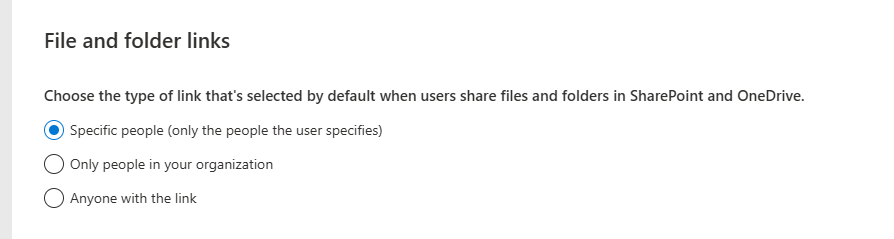
To prevent further “Anyone with the link” issues, we can navigate to the sharepoint admin site. And change the default link to “Specific people”. This will prompt users to actively chose who can see the link. In my experience, this will make a huge impact in the number of “Anyone with the link” instances we have.
https://<tenant>-admin.sharepoint.com/
In here we navigate to Policies -> Sharing -> File and folder links.
8️⃣ Ongoing governance: don’t set and forget
Oversharing remediation isn’t a one-time project. Users create new sharing links every day. New sites get created with default “Public” privacy. Permission inheritance gets broken by well-meaning site admins. Fix everything today and walk away, and you’ll be back where you started in six months.
A governance cadence that actually works:
- Weekly: DSPM default assessment runs automatically — review the dashboard for new high-risk sites or sudden spikes in “Anyone” links
- Monthly: Run custom assessments on your top-risk site categories (HR, Finance, Legal). Review item-level findings. Check auto-labeling policy progress.
- Quarterly: Trigger Site Access Reviews via SAM for all sensitive sites. Review and update your DLP policies. Audit RCD coverage — are there new sensitive sites that need it?
Set up alerts: Configure audit log alerts for new “Anyone with the link” sharing events so you catch oversharing as it happens, not weeks later.
One more thing on retention: DSPM lets you create retention policies that automatically delete content not accessed in 3+ years. Old, forgotten files are the highest-risk files. Reducing the surface area is its own form of protection. We will deep dive into Retention policies in another blog post
What to do Monday morning.
If you’re deploying Copilot in the next few weeks and reading this with a growing sense of unease — good. That’s the right response. Here’s what i would do to get started, to get some data security in place before we do so.
- Today: Go to purview.microsoft.com → DSPM (preview) → Data risk assessments. Check if your default assessment has results. If not, it’ll be ready in ~4 days.
- This week: Identify your top 10 most sensitive SharePoint sites (HR, Finance, Legal, Executive, M&A). Enable Restricted Content Discovery on all of them. Five minutes each. Non-disruptive. This is by far the most important step, and is my go to for everyone who wants to get started with copilot. This will allow you to get started with copilot, while still keeping most of your sensitive data under control. However, everything in these sites that are not sensitive, will not be able to be processed either. So use this as a starting point, then start working on those auto-labeling policies.
- Next week: Review your DSPM assessment results. Create auto-labeling policies for unlabeled sensitive content. Start them now — they take time to process.
- Before Copilot go-live: Create DLP policies to block Copilot from your most sensitive labels. Trigger Site Access Reviews via SAM for your pilot group’s most-used sites.
- After go-live: Establish the weekly/monthly/quarterly review cadence above. Oversharing is a continuous problem that requires continuous governance.
Don’t try to fix all oversharing before deploying Copilot — that’s a years-long project for most organisations. Contain the highest-risk areas first and build outward. RCD for immediate containment, sensitivity labels for targeted protection, DSPM for ongoing visibility. A practical, layered defence.